NYSOH Mobile Upload
MAXIMUSMedical
4.8997.00 Reviews
- Version
- 3.3
- Installs
- 100.00K
- Age Rating
- Everyone
Screenshots
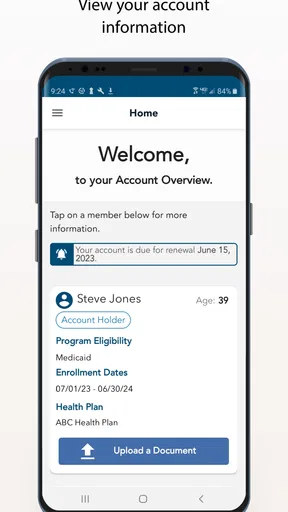
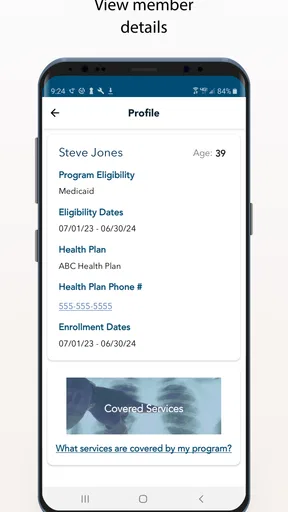
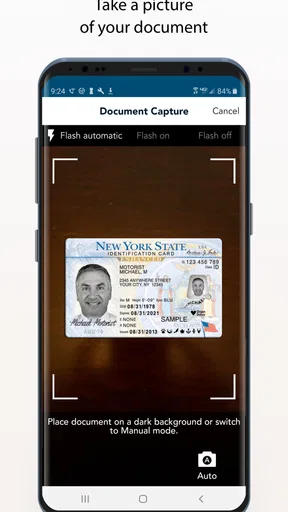
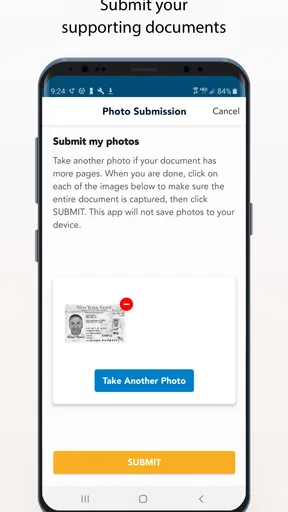
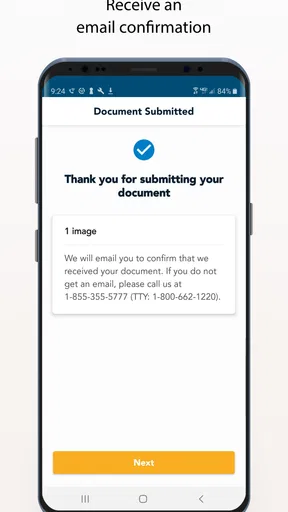
Our Review of NYSOH Mobile Upload
 Analysis by Appyee
If you are applying for health coverage through the New York State of Health marketplace and have been asked to send supporting paperwork, NYSOH Mobile Upload is built for one focused job: getting those documents from your phone to NYSOH. I found it much more practical than treating the process like a general file-sharing task, because the app keeps your attention on submitting the paperwork connected with your health plan application.
That narrow purpose is also the key to understanding the app. This is not a medical reference tool, an appointment manager, or a place to discuss symptoms with a clinician. It is a document-upload app from MAXIMUS for people dealing with an NYSOH application or verification request. If that is the situation in front of you, the simple design can be reassuring. If you are looking for broader health-management features, you will need something else.
What to expect before you begin
NYSOH Mobile Upload is a free Medical app for Everyone, and it runs on Android devices using at least Android 8.0. The current version is 3.2, while the app first appeared on October 27, 2019. Those details matter mainly because they tell you whether your phone is likely to support the app and whether this is the right kind of tool for your task.
The store summary describes the purpose clearly: upload documents to the NY State of Health health plan marketplace. In everyday terms, you use it when NYSOH needs proof or paperwork connected with your application and you want to submit that material from a mobile device rather than relying on a scanner or desktop computer.
My first recommendation is to collect the documents before opening the app. Put the relevant pages somewhere easy to find, and check that the writing is readable. A phone upload can be technically successful while still leaving a reviewer with a blurry, cut-off, or incomplete page. The app helps with sending the file, but it cannot repair poor lighting, missing pages, or a document photographed at an angle.
It is also worth separating the document task from the rest of your health coverage work. You may still need to review your NYSOH account, respond to messages, or complete other parts of an application through the appropriate marketplace channel. NYSOH Mobile Upload is best understood as one step in that process, not a replacement for every NYSOH service.
The app has earned a 4.8 average from around 12 thousand ratings, with hundreds of written reviews, and it has passed 100 thousand installs. I see that as a useful sign that the focused workflow is working for many people, but I would not treat popularity as a guarantee that every upload will be effortless. Your phone camera, internet connection, document quality, and the instructions attached to your case still make a difference.
The first setup is mostly about preparation
After installing the app, I would begin with the information in the request that told you to submit documents. Keep any reference details, deadlines, or document descriptions nearby while you work. That small bit of preparation prevents a common mistake: opening a submission screen and then realizing you are unsure which paperwork belongs there.
Before taking a picture, place the document on a flat surface with all four edges visible. Good light from the side is usually better than a strong reflection from directly above. If the page contains several sections, make sure none are hidden under your hand or clipped by the camera frame. For a multi-page document, keep the pages in order and review them as a group rather than assuming that the first image is enough.
A useful habit is to read the page on your phone before sending it. I zoom in on names, dates, addresses, and any numbers that could be mistaken. This is especially important for paperwork used to verify eligibility or household information, where one unreadable line may create more follow-up work.
If the document already exists as a clear file on your phone, use that instead of making a second-generation photo of a screen or printed copy. A screenshot of a document can sometimes remove context or reduce readability. The cleanest original version is generally the safest starting point, provided it is the document NYSOH requested.
Making the first successful upload
For a first attempt, I would choose one straightforward document rather than trying to submit a large batch immediately. Follow the app’s upload path, select or capture the requested paperwork, and pause to inspect the preview before confirming. That preview is your best opportunity to catch a cropped signature, a missing corner, or a page that was turned sideways.
Once the document looks complete, submit it and wait for the app to finish its process. Avoid closing the app or switching networks during the actual transfer if you can help it. A weak connection can make a simple upload feel uncertain, so staying in one place with a stable connection is a practical improvement that costs nothing.
After the submission, look for the app’s indication that the action finished. I would also keep the original document and note what I sent, especially if NYSOH asked for more than one item. A quick personal record can prevent duplicate uploads and makes it easier to explain what happened if you later need to check the status through the marketplace.
That record does not need to be complicated. Write down the document name, the day you submitted it, and any confirmation or reference information shown during the process. This is one of the less obvious ways to make a narrow upload app more useful: the app handles the transfer, while your note preserves a clear trail of your own actions.
Where first-time users can get confused
The biggest source of confusion is expecting the upload itself to answer every question about an application. Sending a document is not the same as receiving a final eligibility decision, changing a plan, or completing an entire enrollment process. If your concern is about application status rather than the act of sending paperwork, you may need to return to the NYSOH marketplace or use the contact route included in your instructions.
Another easy mistake is uploading the wrong version of a document. People often have several similar files on a phone, particularly after photographing paperwork more than once. Before selecting anything, compare the document title or visible details with the request. If the request asks for a particular page or time period, do not assume that a generally related document will be accepted.
Multi-page paperwork deserves special care. A single clear first page may look convincing, but it can be incomplete if the request expects the entire document. I prefer to count the pages before starting, photograph them in sequence, and inspect the final selection one by one. This takes longer than tapping through quickly, but it is less frustrating than discovering later that an important page never left the phone.
Photos of glossy cards or laminated papers can also create glare that hides text. Move the light source, tilt the document slightly, and take another image if a reflection crosses important information. Do not rely on the fact that the image looks acceptable as a small thumbnail; zoom in on the details that a reviewer would need to read.
Privacy is another reason to slow down. Since this is a health-plan document workflow, check the image for unrelated paperwork, extra pages, or visible information from another person before submitting. Sending only what the request calls for is cleaner and reduces the chance of exposing unnecessary personal details.
How it compares with the usual alternatives
The traditional alternative is using a scanner, saving the file on a computer, and then finding the correct marketplace submission route. That can produce excellent image quality, but it adds equipment and extra steps. For someone who already has the paperwork in hand and a reasonably capable phone, NYSOH Mobile Upload is more direct.
Emailing documents to yourself is another common workaround, but it creates an extra chain of downloading, renaming, and locating files. It can also make it harder to remember which version was actually submitted. A purpose-built upload path is more convenient when the task is specifically tied to NYSOH.
Cloud storage can be useful if a family member or case helper is organizing documents, yet it is not automatically better for a one-time submission. Shared folders may contain several drafts, duplicate photos, or unrelated records. The focused mobile workflow is preferable when you want to move one requested document from your phone into the relevant marketplace process without building a larger filing system.
On the other hand, a scanner or desktop may be the better choice for a long packet, very small print, or pages that must be especially crisp. The app’s convenience does not change the limitations of a phone camera. If the document is difficult to photograph, using a proper scanner first may save time overall.
Who will benefit most from this app
I would recommend it to a person who has received a clear NYSOH request and wants to submit documents from an Android phone. It is particularly helpful for someone without a scanner, someone who is away from home, or a family member assisting with paperwork at the kitchen table. The focused purpose means you do not have to learn a large health portal just to complete the document-transfer portion.
It can also suit users who are comfortable taking careful phone photos but do not want to manage files on a computer. The practical advantage is not a collection of extra tools; it is the shorter path between having the requested paper and sending a readable copy.
I would be more cautious about recommending it to someone who expects the app to explain insurance choices, provide medical advice, or show every detail of an NYSOH case. Its role is narrower. A person who prefers a desktop workflow, needs to organize a substantial archive, or has documents that require high-resolution scanning may be better served by those alternatives.
Users on an older Android phone should check the operating-system requirement before planning around the app. If the device cannot run Android 8.0 or later, the sensible solution is to use a supported phone or another submission method rather than forcing the mobile route.
Small workflow choices that make a real difference
My first practical tip is to create a temporary folder on your phone for the documents related to this one request. Give each image a meaningful name if your phone allows it, such as the document type and page order. This reduces the chance of selecting a vacation photo, a duplicate, or the wrong household member’s paperwork when the upload screen opens.
My second tip is to photograph pages in a consistent direction and review them immediately. Consistency helps you notice whether one page was accidentally rotated or captured from farther away. It also makes a multi-page submission easier to understand when you check it later.
My third tip is to avoid submitting a borderline image just because you are in a hurry. If a name or number is hard to read on your phone, it will not become clearer after upload. Retaking the picture while the documents are still in front of you is usually less work than responding to a later request for a better copy.
There is also a useful trade-off between speed and control. Selecting an existing file is faster, but taking a fresh photo may be better when the old image is poorly framed. Conversely, photographing everything again can create duplicates and confusion. I choose the clearest version, not automatically the newest one.
A realistic everyday example
Imagine receiving a message while you are away from your home computer asking for a document connected with your health coverage application. You have the paper in a folder and an Android phone with enough battery. I would first compare the request with the paper, move to a bright table, photograph every required page, and inspect the images at full size.
Then I would open NYSOH Mobile Upload, follow the submission steps, select the prepared images, and check the preview carefully. After sending, I would record what was submitted and keep the paper folder until the marketplace process is finished. The app makes this scenario manageable because it removes the need to wait for access to a scanner.
If the first image is blurry, I would not continue just to finish quickly. I would retake it. If the app completes the upload but the broader application still shows a pending task, I would treat those as separate issues and check the appropriate NYSOH account or instructions rather than repeatedly sending the same document.
My final view for a first-time user
After using it as intended, I see NYSOH Mobile Upload as a practical specialist rather than a full health app. MAXIMUS has kept the focus on moving documents to the New York State of Health marketplace, and that focus is its main strength. When the request is clear and the phone images are readable, the process feels far less intimidating than arranging a scanner or computer session.
The app is not a substitute for careful paperwork. You still need the correct document, complete pages, readable images, and a way to follow the wider status of your application. Those limits are not reasons to avoid it; they are reminders that a successful upload is only one part of a coverage workflow.
For a first-time user, my advice is simple: prepare the paperwork, take clear images, inspect every page, submit one careful batch, and keep your own note of what you sent. If that matches your situation, the free app is worth trying. If your needs go beyond NYSOH document submission, or if your documents demand scanner-level quality, choose the broader or more precise alternative instead.
Privacy and Permissions
See what permissions an app requests and how it handles your data.
- Photos/Media/Files
- read the contents of your USB storage, modify or delete the contents of your USB storage
- Storage
- read the contents of your USB storage, modify or delete the contents of your USB storage
- Camera
- take pictures and videos
- Other
- view network connections, full network access, prevent device from sleeping
Verdict
Strengths of NYSOH Mobile Upload
- Uploads documents directly from your phone without visiting an office.
- Supports common image and document formats for application paperwork.
- Camera scanning can make photographing forms and IDs more convenient.
- Helps keep health insurance enrollment tasks organized in one place.
- Useful for submitting documents while away from a computer.
Limitations of NYSOH Mobile Upload
- Requires a stable internet connection to complete uploads reliably.
- Photo quality can affect whether submitted documents are accepted.
- May offer limited functionality beyond document submission.
- Users must handle sensitive personal information carefully on their device.
- Upload status or processing times may not be immediately clear.
Similar Picks in This Category
View All
WebMD: Symptom Checker
WebMD, LLC4.1

Microphone Amplifier
DOSA Apps4.2

Anatomy Learning - 3D Anatomy
3D Medical OU4.5

Period Tracker and Calendar
SimpleInnovation4.9

GoodRx: Prescription Coupons
GoodRx4.8

CVS Health
CVS Pharmacy4.5
Frequently Asked Questions
What is NYSOH Mobile Upload used for?
NYSOH Mobile Upload is designed to help New York State of Health users submit requested documents from a mobile device. Instead of printing or mailing paperwork, you can use the app to photograph or select files and upload them for review. It is mainly useful when completing or maintaining an application for health coverage and receiving a document request from NYSOH.
Do I need a New York State of Health account to use the app?
In most cases, you need an active New York State of Health account or an upload request connected to an existing application before the app can be useful. The application is not a general-purpose cloud storage tool; it is intended to send documents to NYSOH. Keep your account details, case information, and any instructions from NYSOH available so the upload can be correctly matched to your application.
What types of documents can I upload with NYSOH Mobile Upload?
The app is intended for documents requested by New York State of Health, such as proof of identity, income, residency, immigration status, or other eligibility information. The exact documents depend on your individual case. Before uploading, make sure every page is included, the text is readable, and the document matches the request. If NYSOH specifies a format or deadline, follow those instructions carefully.
How can I take clear document photos for upload?
Place the document on a flat, well-lit surface and avoid shadows, glare, folded corners, and cropped edges. Hold your phone steady and check that names, dates, numbers, and all other text are readable before submitting. If the document has multiple pages, photograph or select each page in the correct order. Blurry or incomplete images may delay processing or lead to another request.
Is NYSOH Mobile Upload secure, and what should I do after submitting documents?
The app is intended for transmitting sensitive information to New York State of Health, so use it only on a trusted device and a secure internet connection. Avoid sending health or identity documents through unofficial channels. After uploading, save any confirmation or reference information and monitor your NYSOH account for status updates. An upload confirmation does not necessarily mean the documents have already been approved or reviewed.
